16. Task Store
The Task Store is a shared library of Tasks and Triggers, hosted centrally by GyroTools, that lets you browse and reuse definitions published by GyroTools or other users — and share your own project’s Tasks and Triggers with them in return. It is a two-way sync:
Import — browse the store and pull a published Task or Trigger into your own project.
Publish — push a Task or Trigger from your own project up to the store so others can import it.
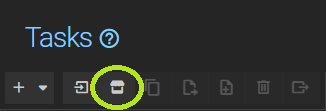
Tasks and Triggers each have their own store screen (Task Store and Trigger Store), reached from a store icon () in the Task and Trigger toolbars respectively. The two screens work identically — everything below applies equally to both, substituting “Trigger” for “Task” where relevant.
16.1. Browsing and Importing
Click the store icon in the Task (or Trigger) toolbar — tooltip Browse the public task store — to open the store list.
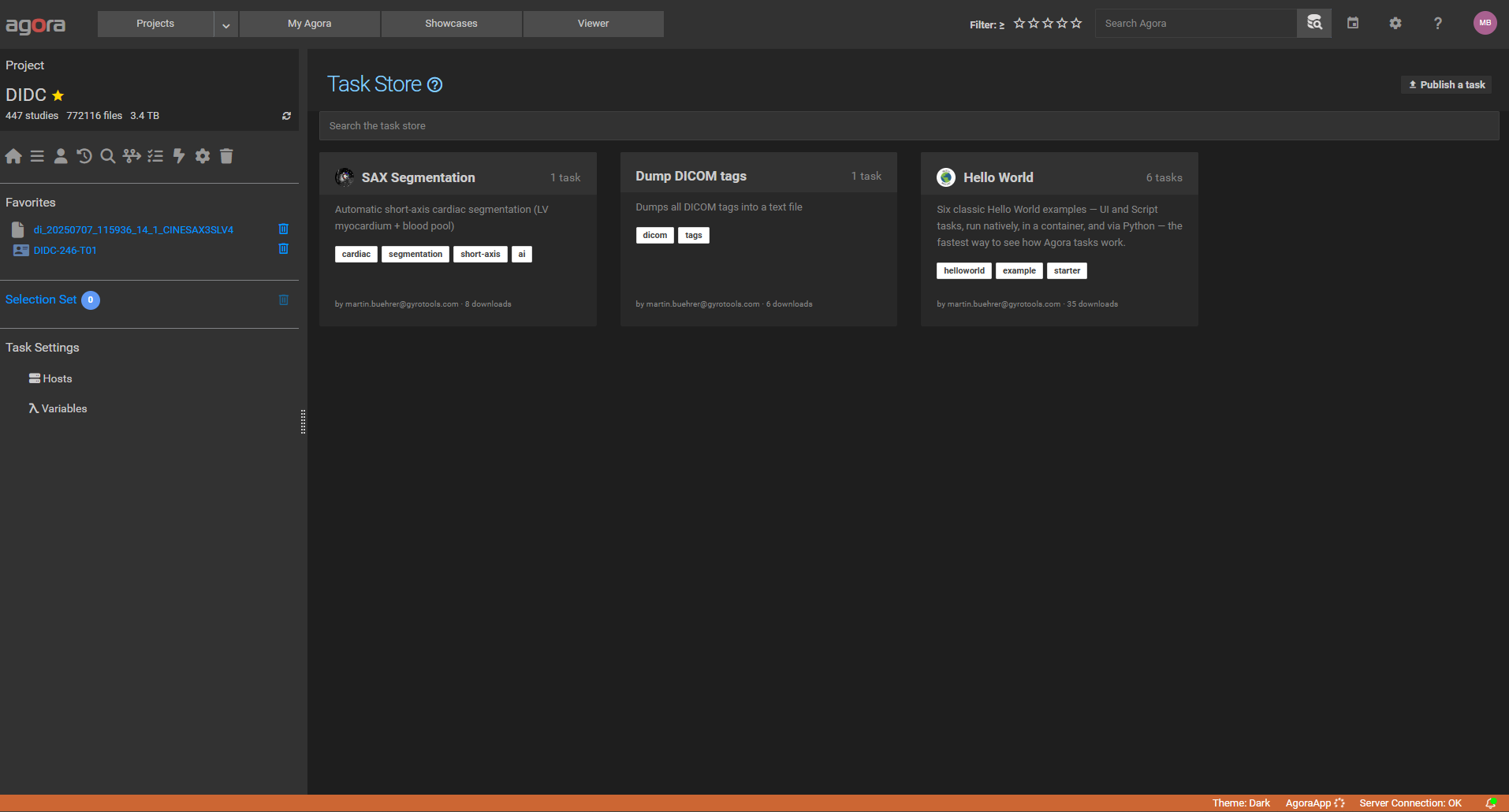
Each entry is shown as a card with its name, an optional image, a short description, tags, the publisher’s email, and its download count. Use the search box at the top to filter entries by name, description, or tag.
Selecting a card opens its detail page, showing the full description and the list of Tasks (or Triggers) contained in the entry’s bundle. Click Import into this project to add all of them to the currently open project.

Note
Importing requires the Manage Tasks (or Manage Triggers) permission in the target project. Browsing the store itself requires no special permission or account — any Agora installation with a valid license can search and download entries.
16.2. Publishing a Task or Trigger
Inside the store list screen itself — not the main toolbar — a Publish a task (or Publish a trigger) button opens the publish dialog. This is deliberately placed one level below the toolbar: discoverable, but not as prominent as everyday actions like Duplicate or Export.
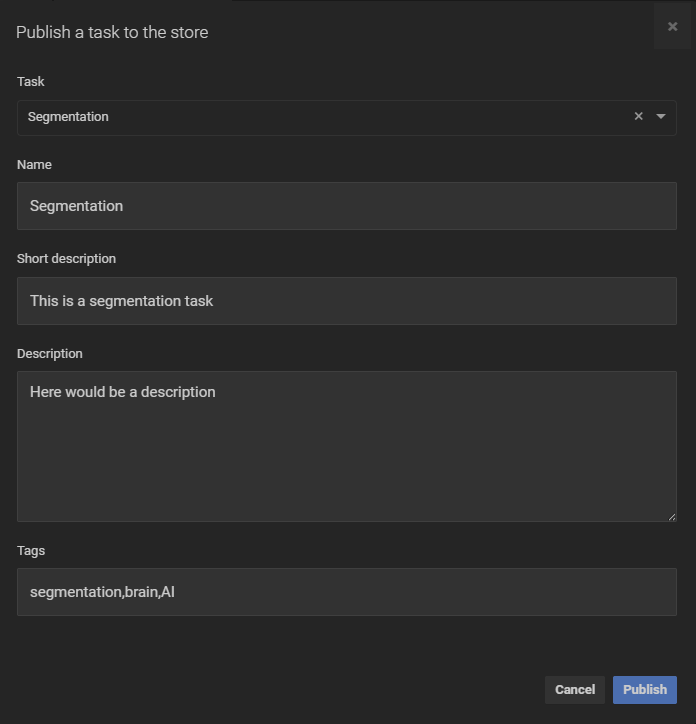
The dialog first asks you to pick one of your project’s own Tasks or Triggers from a dropdown, then collects:
Name — the entry’s title in the store.
Short description — shown on the store list card.
Description — the full description shown on the entry’s detail page.
Tags — free-text, comma-separated; used for search and filtering in the store.
Click Publish to upload it. What gets uploaded is the same bundle format used by the existing local Task/Trigger export — publishing a definition to the store produces an identical bundle to exporting it to a .json file, so importing it elsewhere behaves exactly like importing a local export.
Editing and deleting your own entries
On an entry’s detail page, if you are the publisher, Edit and Delete buttons appear next to Import into this project. Edit reopens the same dialog pre-filled with the entry’s current metadata (the Task/Trigger picker is skipped, since you’re editing the store entry’s description, not swapping which definition it wraps). Ownership is determined by your linked GyroTools portal account, described next.

16.3. Linking Your GyroTools Portal Account
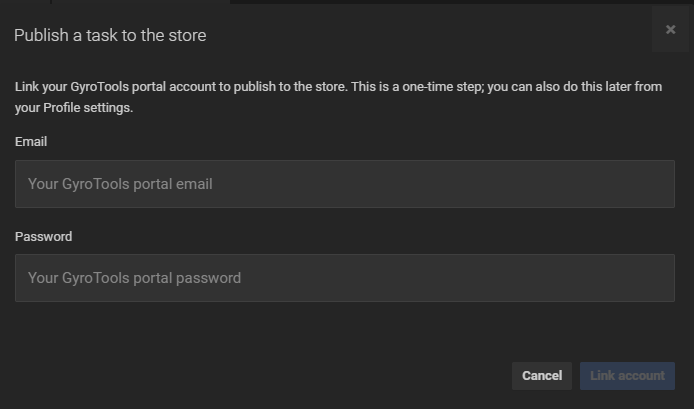
Publishing — and later editing or deleting what you published — requires linking your GyroTools portal account. This is separate from your Agora login: it identifies you on the shared store itself, so uploads can be attributed to you and only you can edit or remove what you publish.
The first time you publish, the dialog shows an inline form for your portal email and password before the metadata form. Submitting it links your account; Agora exchanges the credentials for your personal portal API key and stores it securely. This is a one-time step — the link is remembered across sessions, so you are never asked to re-enter your portal credentials on subsequent publishes, edits, or deletes.
Any project member who links their own GyroTools portal account can publish to the shared store — there is currently no additional role or permission gate beyond having a linked account.
16.4. Managing Your Account Link from Profile Settings
The account link can also be set up or removed ahead of time, independently of publishing, from User Profile and Settings under the Task Store tab. It shows your current link status (the linked email, if any) and lets you link or unlink your account. The same link is shared by both the Task Store and the Trigger Store — you only need to link once.
Unlinking removes the stored portal API key. You can still browse and import from the store afterwards, but publishing, editing, or deleting entries requires linking again.