18. User Profile and Settings
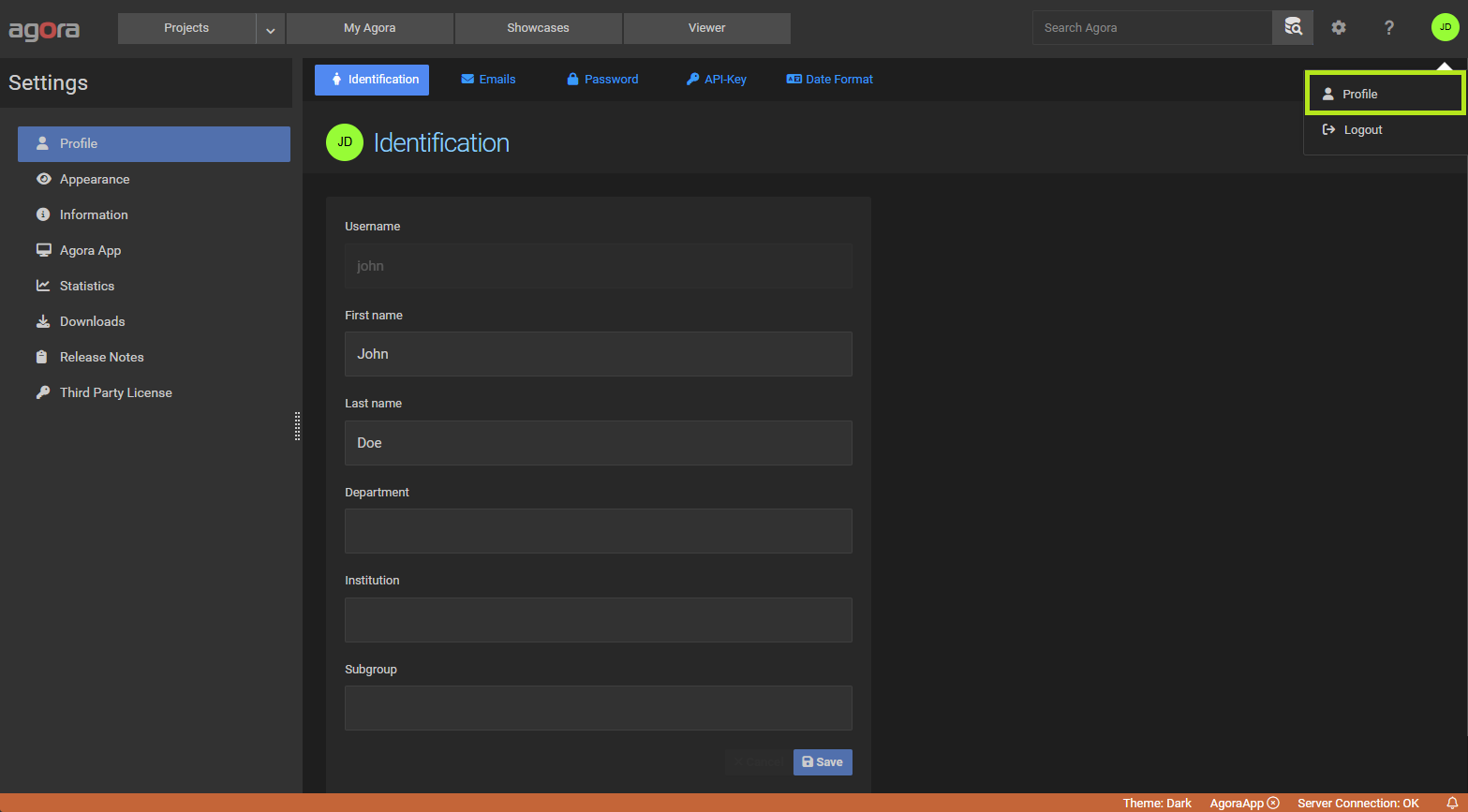
Personal settings are accessible via the icon in the top-right corner of the page or by clicking on your avatar and select Profile. The settings sidebar is divided into sections for your profile, appearance, and system information.
18.1. Profile
The Profile section contains several tabs for managing your personal account.
18.1.1. Identification
Avatar — choose a colour for your personal avatar, which is displayed throughout the UI next to your name.
First Name / Last Name — your display name.
Department / Institution / Subgroup — optional organisational details.
18.1.2. Password
Change your account password by entering your current password and a new password twice to confirm. This tab is not shown for accounts that use Single Sign-On (SSO), as passwords are managed by the identity provider in that case.
18.1.3. API Key
An API key is a personal authentication token for use in scripts and applications that interact with the Agora REST interface. It allows you to authenticate without embedding your username and password in code.
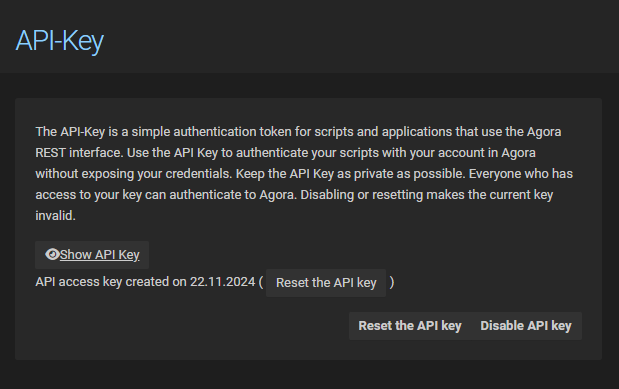
Show / Hide — reveal or mask the key value.
Copy to clipboard — copy the key for use in scripts.
Reset — generates a new key and immediately invalidates the old one.
Enable / Disable — temporarily disable the key without deleting it. A disabled key is rejected on all API requests.
Note
Keep your API key private. Anyone who obtains it can authenticate to Agora as you. If a key is compromised, reset it immediately.
This tab is only shown if API key login is enabled by the administrator.
18.1.4. Task Store
Link or unlink your GyroTools portal account, used to publish your own Tasks and Triggers to the shared Task Store. This tab shows your current link status (the linked email, if any) and a link/unlink form. Linking here is equivalent to linking inline the first time you publish — it is a one-time step remembered across sessions, and shared by both the Task Store and the Trigger Store.
18.1.5. Date and Time Format
Select the locale used to format dates and times throughout the UI. A live preview of the selected format is shown below the dropdown.
18.2. Appearance
Select a UI theme from the dropdown. The change takes effect immediately.
18.3. Agora App
This page shows the connection status of the Agora App desktop helper installed on your machine — whether it is connected, the computer name, operating system, and app version. Use this page to verify the app is running correctly before starting local tasks or downloads.
If the app is not yet installed, a download link and installation instructions are provided here. See Data Download and Export for more details on the Agora App.
18.4. Information
The Information page shows read-only details about the Agora server: version, build information, DICOM node address and port, storage statistics, and installed tool versions. This is useful when reporting issues or verifying the server configuration.
18.5. Downloads
The Downloads page provides links to all client-side tools and libraries:
Agora App — desktop helper for local task execution and fast downloads (Windows, Linux, macOS).
Agora Python Library —
pip install gtagora-connectorAgora MATLAB Library — available on GitHub.
Agora C++ Library — available on GitHub.