19. Booking
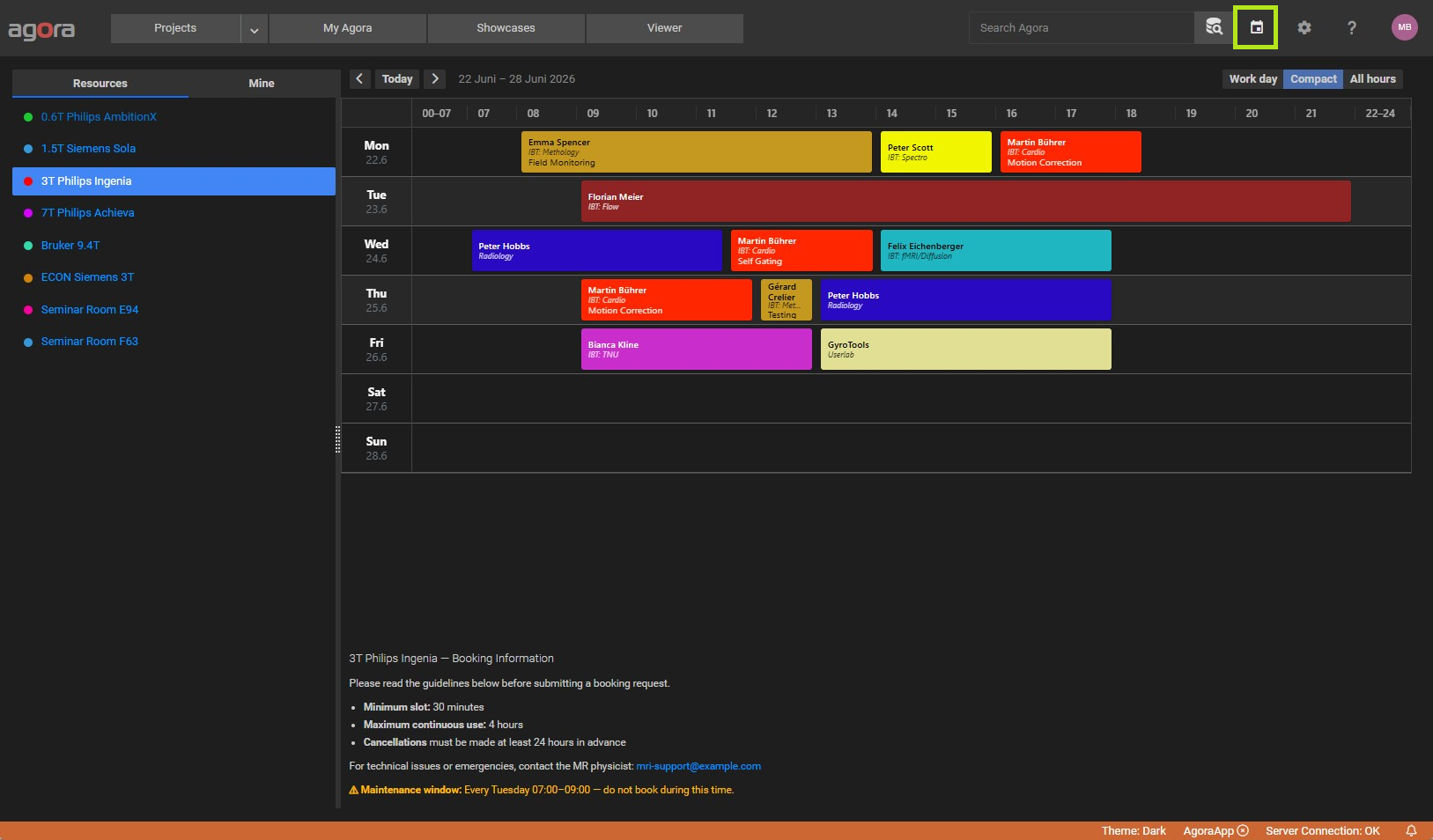
The Booking module lets users reserve time on shared resources such as MRI scanners, lab equipment, or any other facility that needs to be scheduled. It is accessible from the main navigation bar via the Booking link.
19.1. Booking Resources
A resource is anything that can be booked — a scanner, a room, a piece of equipment. The sidebar on the left lists the active resources you have access to. Click a resource name to load its weekly calendar and see existing bookings for that resource. If the resource has a description, it is shown below the calendar.
19.2. Access and Roles
What you can do with a resource depends on your role for that resource:
Role |
What it allows |
|---|---|
Manager |
Edit the resource and its access list, create, change, and delete all bookings on it, book on behalf of other users, and view its statistics. Managers are not restricted by the booking limits. |
User |
Create bookings and change or delete their own. |
Observer |
View the calendar only. |
No access |
The resource is hidden. |
Each resource has a default role that applies to everyone, and a list of users with a role of their own (see Managing Resources). Superusers are managers of every resource.
Note
If the Booking link is missing from the navigation bar, booking has been disabled for your account by an administrator.
19.3. The Week View
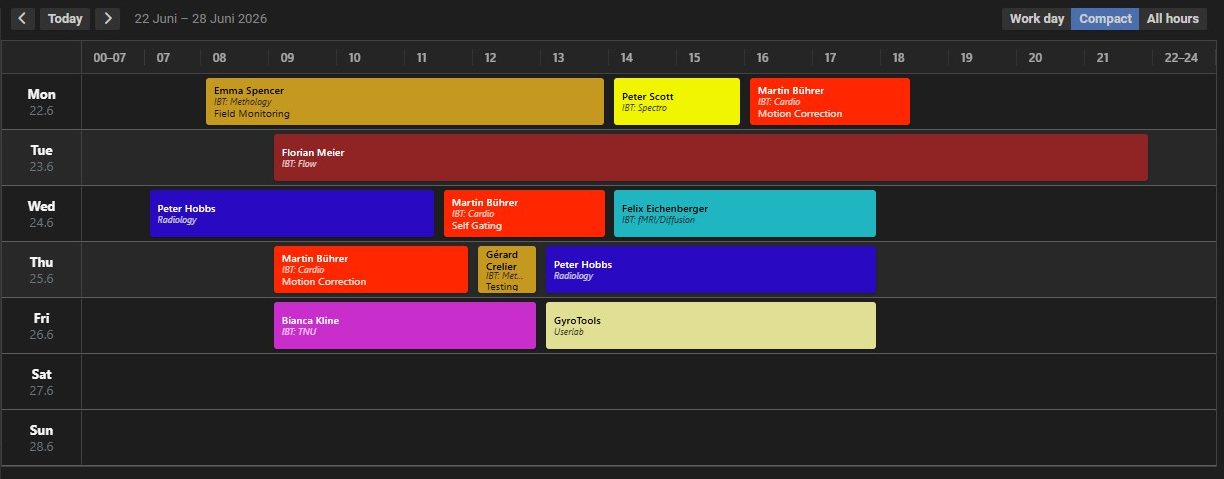
The main area shows a week-view calendar grid with one column per day (Monday through Sunday) and time as rows. Each row represents a time interval defined by the resource’s time step setting (5, 10, 15, 30, or 60 minutes).
Navigating weeks
Use the Previous and Next buttons to move one week back or forward.
Click Today to jump back to the current week.
Time band presets
A dropdown in the toolbar controls how many hours are visible at once:
Work day — 08:00 to 18:00 (default)
Compact — 07:00 to 22:00
All hours — 00:00 to 24:00
Existing bookings appear as colored chips inside the grid. Each chip is color-coded to match its resource.
19.4. Creating a Booking
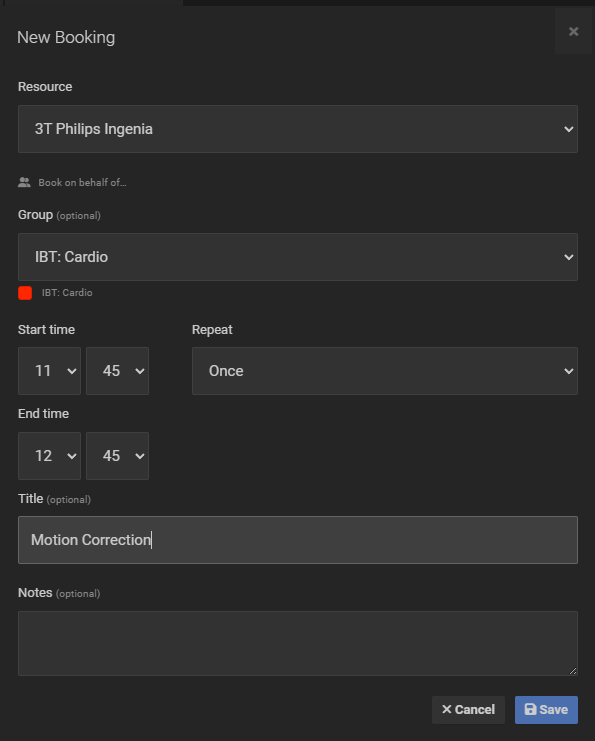
Click any empty cell in the grid to open the booking form. The Start time and End time fields are pre-filled based on the cell you clicked. Fill in the remaining details and click Save to create the booking.
Form fields
Resource — the resource being reserved. Pre-selected when you click the grid.
Group — an optional tag for the booking (e.g. “External”, “Maintenance”). Groups are defined by an administrator.
Start time / End time — the time window for the reservation.
Title — a short label shown on the booking chip in the calendar.
Notes — optional free-text notes visible when the booking is opened.
Overlap detection
If your booking overlaps with an existing reservation, a warning is shown below the form listing the conflicting bookings and the users who made them. You can still save the booking if the overlap is intentional.
Booking limits
A resource can restrict when and how much it may be booked. If your booking breaks one of these limits, the form shows the reason and the booking cannot be saved:
Book ahead — a booking may start at most this far in the future.
Maximum duration — a single booking may not be longer than this.
Weekly quota per user — the total time you may book on this resource per calendar week (Monday to Sunday).
Bookings cannot be created in the past, unless the resource allows changes for some time after a booking has ended.
Managers of the resource are not restricted by these limits.
19.5. Editing and Deleting a Booking
Click an existing booking chip in the calendar to open the booking detail view. If the booking belongs to you and has not ended yet, you can edit any field or delete it using the Delete button. A resource can be configured to allow changes for a certain time after a booking has ended, for example to correct the actual end time afterwards.
Note
Bookings made by other users, and your own bookings that can no longer be changed, are displayed in read-only mode. Managers of a resource can edit and delete all bookings on it.
19.6. Recurring Bookings
The booking form includes a Repeat option to create a series of bookings in one step.
Repeat options
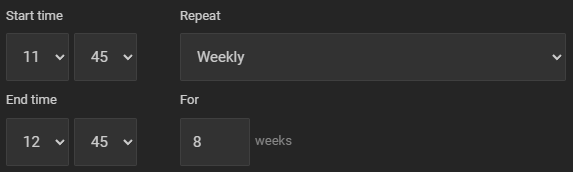
Once — a single booking (default).
Daily — repeated every calendar day.
Mon–Fri — repeated on weekdays only.
Weekly — repeated once per week on the same day.
The For N field sets how many repetitions to create (1–52). For example, selecting Weekly with For 4 creates bookings on the same weekday for four consecutive weeks.
19.7. Booking on Behalf of Another User
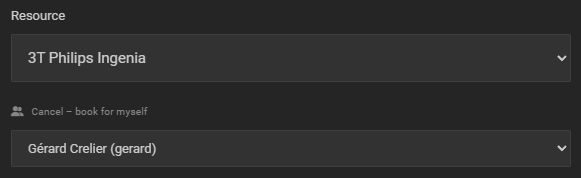
Managers of a resource can create a booking on behalf of another user.
Note
This section is only visible for resources you manage.
At the bottom of the booking form, expand the Book on behalf of section, select the target user, and submit the form. The booking will be recorded under the selected user’s account. Only users who are allowed to book the resource are offered.
19.8. My Bookings
The Mine tab in the left sidebar shows all of your upcoming bookings, grouped by relative day (Today, Tomorrow, or the date).
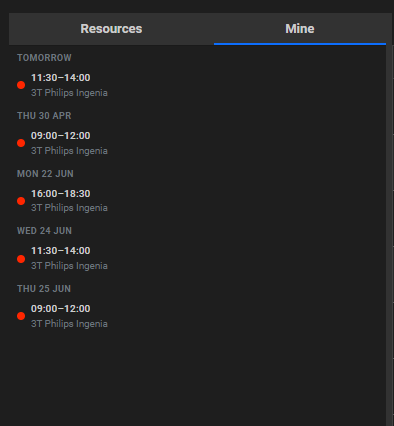
Click any entry in the list to navigate directly to the resource’s calendar for the week containing that booking.
19.9. Administration
The booking administration pages are accessible via Settings → Booking in the main navigation.
Note
The administration section is accessible to superusers and to users who are Manager of at least one resource. Managers see and edit only the resources they manage; creating and deleting resources and managing groups is reserved for superusers.
19.9.1. Managing Resources
Resources represent the physical or logical items that users can book (e.g. scanners, rooms, instruments).
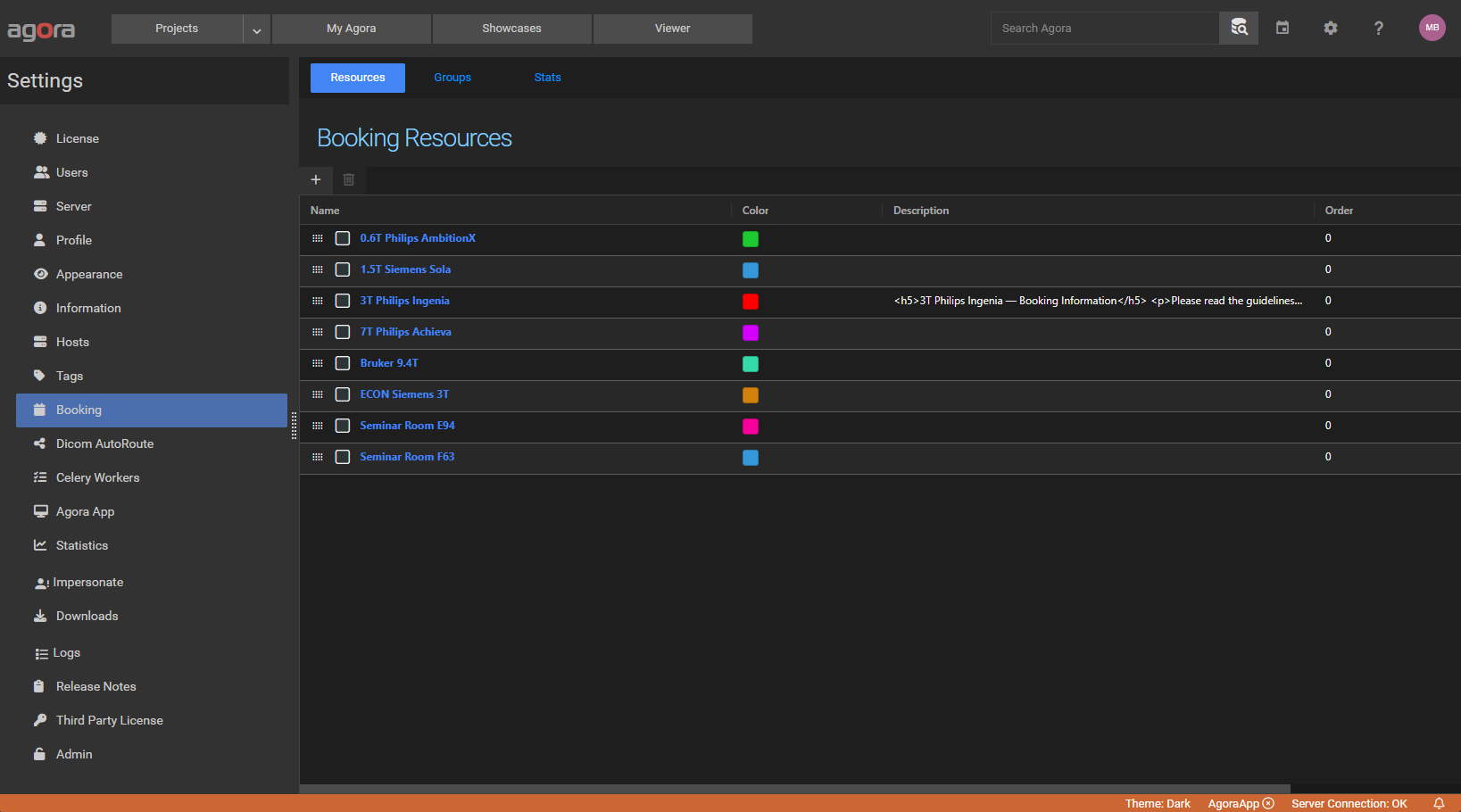
Click New to create a resource or click an existing row to edit it. The following fields are available:
Name — display name shown in the sidebar and on booking chips.
Description — optional longer description of the resource, shown below the calendar. HTML is allowed; scripts and event handlers are removed.
Color — the color used for booking chips belonging to this resource.
Active — inactive resources are hidden from the booking calendar.
Booking time step — the allowed time increments when creating a booking: 5, 10, 15, 30, or 60 minutes.
Operating hours — optional. Slots outside these hours are shaded in the calendar. Leave blank for a resource that is available around the clock.
Resources can be reordered by dragging rows up or down in the list. The order determines the display sequence in the sidebar.
Limits
Four optional limits restrict how the resource can be booked. Each is entered as a number with a unit (hours, days, or weeks); leave a field blank for no limit. Managers of the resource are not restricted by these limits.
Limit |
Description |
|---|---|
Edit past bookings |
How long after a booking has ended its owner may still change or delete it. |
Book ahead |
How far in advance a booking may start. |
Maximum duration |
Maximum length of a single booking. |
Weekly quota per user |
Maximum total booking time per user and calendar week (Monday to Sunday). |
Access
The Access panel next to the resource form controls who can see and book the resource. See Access and Roles for what each role allows.
Default role for all users — the role of everyone who is not listed below: User, Observer, or No access.
Users — select a user and a role and click to give that user a role of their own. A listed user’s role replaces the default, so it can be higher (e.g. Manager) or lower (e.g. No access, to exclude someone from an otherwise open resource). Change the role in the list at any time, or remove the entry to return the user to the default role.
For example, to restrict a scanner to trained operators, set the default role to Observer and add each operator as User.
19.9.2. Managing Groups
Groups are optional labels that can be attached to bookings to categorise them (e.g. “External collaborator”, “Maintenance”, “Teaching”).
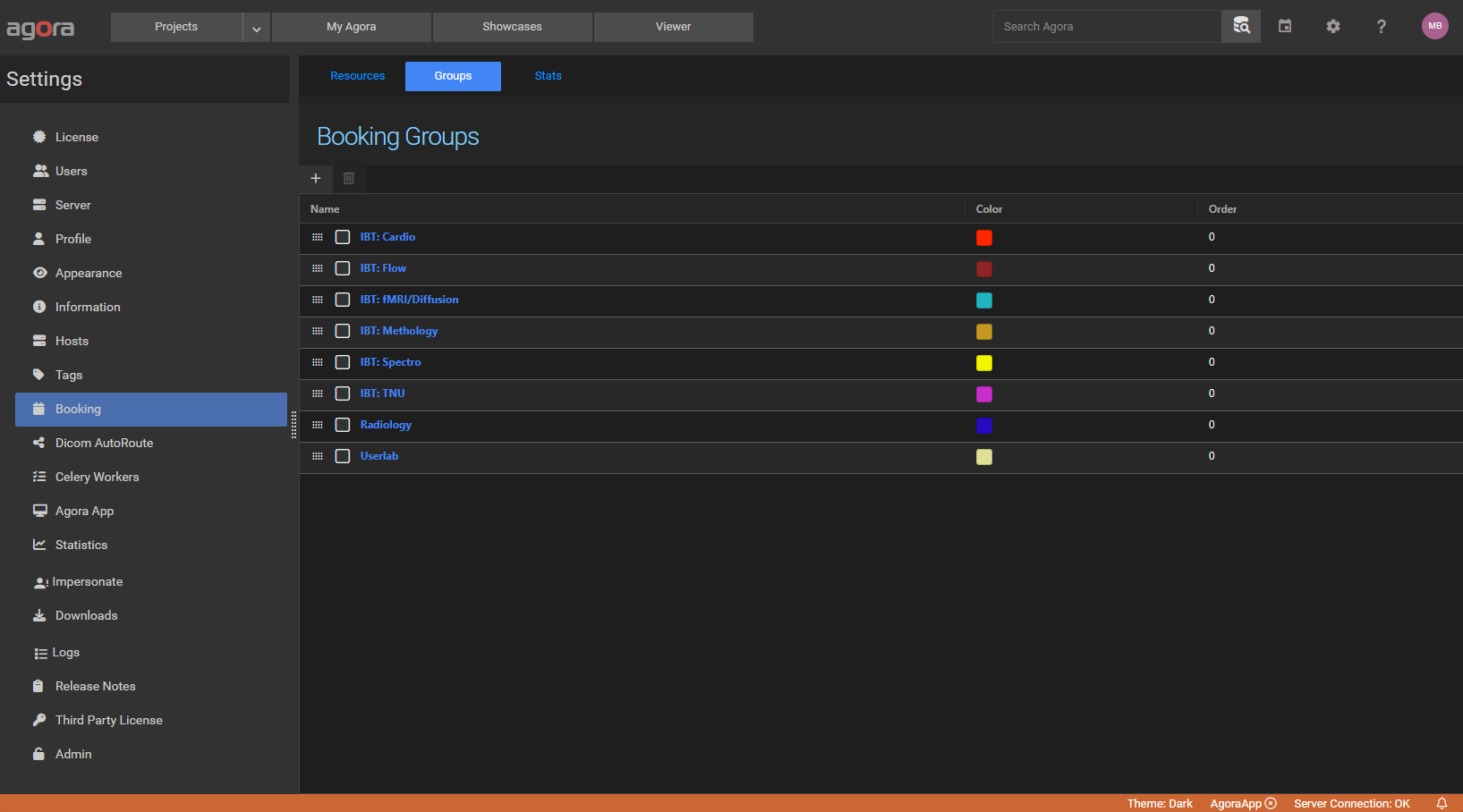
Click New to create a group or click an existing row to edit it. Each group has a Name and a Color. Groups can be reordered via drag-and-drop in the same way as resources.
19.9.3. Statistics
The Statistics page gives a usage overview for a selected date range. Resource managers see the statistics of the resources they manage.
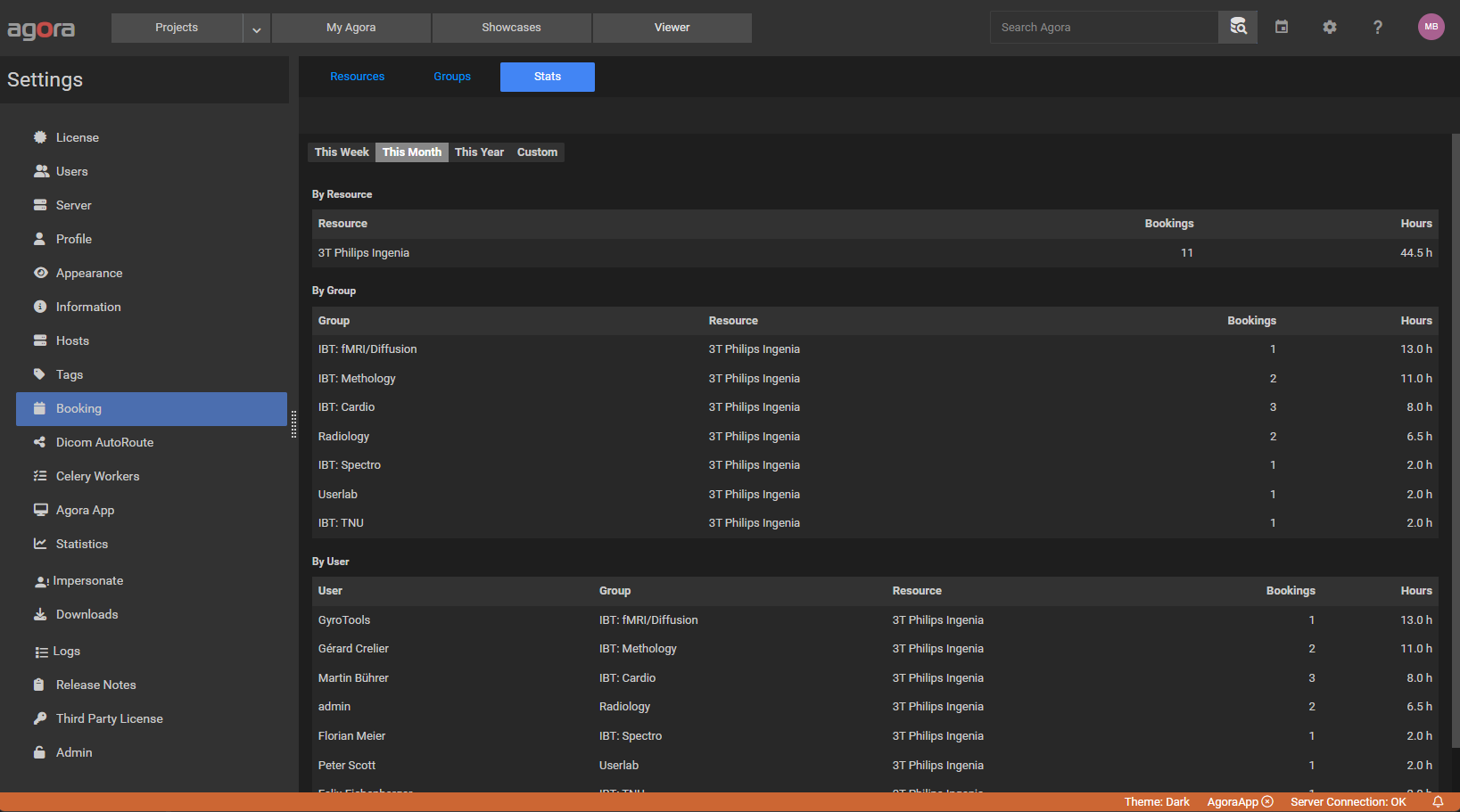
Use the date-range selector to choose a preset period:
This Week
This Month
This Year
Custom — enter an explicit start and end date.
Three summary tables are displayed:
By Resource — total bookings and cumulative hours per resource.
By Group — total bookings and cumulative hours per group.
By User — total bookings and cumulative hours per user.