15. Triggers
A trigger is an automated rule that watches for a specific event in a project and, when the event occurs and an optional filter condition is met, executes a configured action automatically. Triggers are managed in the project menu via the Triggers button.
Common use cases include automatically organising newly imported data into folders, launching a processing task whenever a new series arrives, or copying studies to an archive project.
Note
To browse and import Triggers shared by other GyroTools customers — or publish your own — see Task Store.
15.1. Overview
Each trigger has three parts:
Event — what causes the trigger to fire (e.g. a new series arriving, a scheduled time).
Selector — an optional filter that limits which objects the trigger acts on.
Action — what Agora does when the trigger fires and the selector matches.
When multiple triggers watch the same event, they execute in the order shown in the trigger list. The order can be changed by dragging rows in the list. Triggers execute one at a time, in sequence — later triggers see the results of earlier ones (e.g. a rename applied by the first trigger is visible to the second).
Note
If a trigger with a Move to project action fires, all subsequent triggers in the list are skipped for that event. The object has left the project at that point, so any further actions would operate on an object that no longer belongs here.
15.2. Managing Triggers
The toolbar above the trigger list creates, duplicates, and deletes triggers, and moves them between projects and Agora instances. Changing triggers requires the permission to manage triggers in the project.
The Valid column
The Valid column of the trigger list flags triggers that cannot currently run, with a tooltip listing the reasons — for example a trigger without a project, a Run Task or Copy/Move to project action with nothing selected, or an After Task Completed trigger whose task was deleted. Open the trigger, complete the missing settings, and save it to make it valid again.
Copying or moving a trigger to another project
Select a trigger and click Copy trigger to another project or Move trigger to another project, then choose the target project. You need the permission to manage triggers in both projects. A copy leaves the original in place; a move removes it from the current project.
Settings that refer to other objects of the project are carried over by name:
A task run by the trigger is replaced by the task with the same name in the target project.
Project tags are replaced by the tags with the same label in the target project. Global tags are kept as they are.
Anything without a counterpart in the target project is cleared, and the Valid column then shows what still has to be configured.
Exporting and importing triggers
Triggers can be saved to a file and loaded into another project or another Agora instance:
Export the selected trigger downloads the selected trigger, or several selected triggers as one bundle, as a
.jsonfile.Import a trigger loads such a file into the current project.
On import, a referenced task, target project, tag, or email recipient that does not exist on the destination is cleared instead of failing the import. Check the Valid column afterwards.
Trigger Store
Browse the public trigger store opens the store of triggers shared by other GyroTools customers. See Task Store.
15.3. Events
The following events are available:
Event |
When it fires |
|---|---|
Add Study to Project |
Once when a study record is first created in the project (on import, copy, or move). |
Add Series to Project |
Once per series each time a series is added to the project (on import, copy, or move). |
Add Dataset to Project |
Once per dataset when a standalone dataset is added to the project, or for each dataset belonging to a series on import. |
After Task Completed |
Fires when a task finishes successfully. An optional task filter limits the event to a specific task; leaving it empty triggers on any task completion. |
Remove Study from Project |
Fires when a study is removed (soft-deleted) from the project. |
Remove Series from Project |
Fires when a series is removed (soft-deleted) from the project. |
Tag Added |
Fires when a tag is applied to any object in the project (study, series, or dataset). An optional tag filter limits the event to a specific tag; leaving it empty triggers on any tag being added. |
ParameterSet Created |
Fires when a user submits a parameter form for any object in the project (exam, series, dataset, patient, or folder). Does not fire for system-generated parameter sets extracted automatically from DICOM headers or datasets during import. |
Periodic |
On a recurring schedule (hourly, daily, weekly, monthly, or once). |
Manual |
Triggered manually from the task menu. |
Important
Understanding imports: studies arrive series by series
When data is imported into Agora the transfer happens at the series level — each series is received, processed, and stored independently, in parallel or in sequence, depending on the scanner and protocol. This has an important consequence for which event to use:
Add Series to Project fires once for each series the moment that series finishes importing. This is the correct event for reacting to incoming data — for example, launching a processing task or organising data into folders. The context includes
context['series'](the triggering series) andcontext['exam'](the full parent study with all series imported so far), which gives access to study-level metadata (patient demographics, study description, accession number, etc.) during per-series processing. Since the trigger fires multiple times, use idempotent actions (adding a tag that is already there has no effect).Add Study to Project fires once when the study record is first created in the project, which typically happens when the very first series of the study arrives. At that point the remaining series are still being imported. However, by combining this event with a delay, you can wait for the import to finish before acting — making it the right choice for checking study completeness, for example tagging a study as complete once all expected series are present. See `Add Study / Series / Dataset to Project — optional delay`_ below.
When a study is copied or moved to a project, Agora transfers the entire study atomically. In this case both events fire with the complete study available. The Add Study to Project event is therefore also suitable for reacting to copy/move operations or for study-level bookkeeping (e.g. study renaming).
Summary:
React to imports (per-series processing, folder organisation) → use Add Series to Project
Check study completeness after an import finishes → use Add Study to Project with a delay
React to copy/move of a complete study → Add Study to Project or Add Series to Project both work
React to individual datasets (e.g. NIfTI, Logfiles, pdf’s etc.) → use Add Dataset to Project
Add Study / Series / Dataset to Project — optional delay
When one of the three Add … to Project events is selected, an optional delay can be configured. The action will not execute immediately when the event fires; instead it is scheduled to run after the specified number of seconds, minutes, or hours. This is useful when you want to wait for additional data to arrive before acting — for example, waiting a few minutes after a series arrives to give the scanner time to send all related datasets.
Note
The delay is applied per trigger. If the same object matches several triggers with different delays, each trigger fires independently according to its own delay.
After Task Completed — optional task filter
When After Task Completed is selected, an optional task dropdown appears. Select a specific task to limit the trigger to completions of that task only. Leave the field empty to fire on any task completion.
Tag Added — optional tag filter
When Tag Added is selected, an optional tag dropdown appears. Select a specific tag to limit the trigger to additions of that tag only. Leave the field empty to fire whenever any tag is added to any object.
ParameterSet Created — user-defined forms only
The ParameterSet Created event fires only when a project member submits a parameter form template (see Parameter Form Templates) for an object — that is, when a user-defined parameter set is created. It does not fire for parameter sets that Agora generates automatically during import (for example, DICOM acquisition parameters extracted from raw datasets).
The triggering object can be any of the following: exam, series, dataset, patient, or folder. The context provided to filter and action scripts contains the entity that the parameter set was attached to, along with its parameters field containing the submitted values. See the context table in The context dictionary for details.
Periodic trigger schedule
When Periodic is selected, the following fields control the schedule:
Start time — date and time of the first execution. Must be set to a future time when the trigger is saved.
Interval type —
Hourly,Daily,Weekly,Monthly, orOne-time.Interval — how many units to wait between runs (e.g.
3withHourlyfires every 3 hours).
A Run now button (▶) is shown next to the interval settings once the trigger has been saved. Clicking it executes the trigger immediately without affecting the regular schedule or updating the last-run timestamp used for the next scheduled execution.
15.4. Selectors
A selector decides whether the trigger acts on a given object. Three selector modes are available:
Selector |
Behaviour |
|---|---|
No Filter |
The trigger acts on every object that matches the chosen event. |
Regular Expression |
Only objects whose name matches a given regular expression are processed. Not applicable to Periodic triggers (there is no object name to match). |
Python filter |
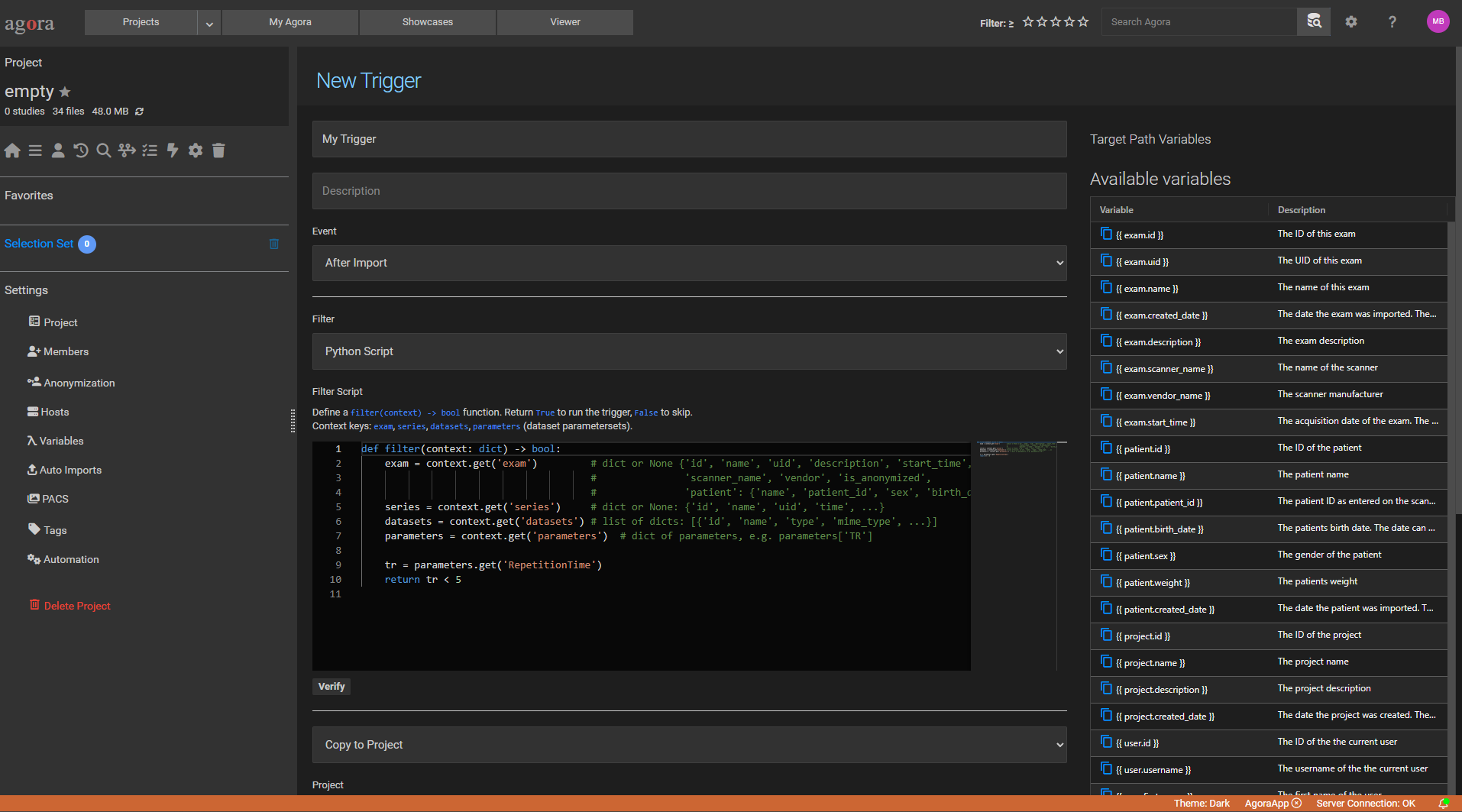
A Python script is executed. The trigger fires only if the script returns |
15.5. Python Script Filter
The script filter lets you write arbitrary Python logic to decide whether the trigger should act on a given object. This is useful when the condition cannot be expressed as a simple name pattern — for example, filtering by acquisition parameter, scanner name, or patient metadata.
15.5.1. Script structure
The script must define a function named filter that accepts a single context argument and returns a boolean:
def filter(context: dict) -> bool:
    # inspect context fields here
    return True   # True → process this object; False → skip it
The script is executed in a sandboxed environment (an isolated container with no network access) with a 25-second timeout. Only the Python standard library is available — no third-party packages.
15.5.2. The context dictionary
The context dictionary contains keys that depend on the event type. The primary key is named after the triggering object; additional top-level keys may also be present.
Event |
Context keys and what they contain |
|---|---|
Add Study to Project |
|
Add Series to Project |
|
Add Dataset to Project |
|
After Task Completed |
Same context as the event that originally triggered the task. |
Remove Study from Project |
|
Remove Series from Project |
|
Tag Added |
The context key depends on the type of object that was tagged: |
ParameterSet Created |
The context key depends on the entity the parameter set was attached to:
Only the key matching the entity type is populated. The |
Periodic |
No triggering object. The context contains project and schedule metadata instead:
|
Manual |
Same as the equivalent data event — |
context['exam'] fields (Add Study to Project)
Field |
Description |
|---|---|
|
Internal study ID. |
|
Study name. |
|
Unique identifier (e.g. DICOM Study Instance UID). |
|
Study description. |
|
Name of the scanner on which the study was acquired. |
|
Scanner vendor / manufacturer name. |
|
Acquisition start time (ISO 8601 string). |
|
Date the study was added to Agora (ISO 8601 string). |
|
|
|
Nested patient object (see below). |
|
Nested project object (see below). |
|
List of series objects. Each series has a |
|
List of user-defined parameter values attached to this exam via a parameter form. Empty list if no parameter form has been submitted. See `The parameters list`_ for the entry structure. |
context['exam']['patient'] fields
Field |
Description |
|---|---|
|
Internal patient ID. |
|
Patient name. |
|
Patient identifier (e.g. hospital number). |
|
Date of birth (ISO 8601 string). |
|
Sex: |
|
Body weight in kg. |
|
Date the patient record was created (ISO 8601 string). |
context['exam']['project'] fields
Field |
Description |
|---|---|
|
Internal project ID. |
|
Project name. |
|
Project description. |
context['series'] fields (Add Series to Project)
Field |
Description |
|---|---|
|
Internal series ID. |
|
Unique identifier (e.g. DICOM Series Instance UID). |
|
Series name. |
|
Series acquisition time (ISO 8601 string). |
|
|
|
|
|
DICOM acquisition number. |
|
List of dataset objects belonging to this series. Each dataset has a |
|
List of user-defined parameter values attached to this series via a parameter form. Empty list if no parameter form has been submitted. See `The parameters list`_ for the entry structure. |
|
Parent study object (flat reference — no |
context['dataset'] fields (Add Dataset to Project)
Field |
Description |
|---|---|
|
Internal dataset ID. |
|
Dataset name (typically the original filename). |
|
Dataset type as an integer. See Dataset type values below. |
|
MIME type string. |
|
List of acquisition parameters (see below). |
|
Flat parent series object (or |
|
Flat direct parent study object (or |
context['patient'] fields (ParameterSet Created — patient)
Field |
Description |
|---|---|
|
Internal patient ID. |
|
Patient name. |
|
Patient identifier (e.g. hospital number). |
|
Date of birth (ISO 8601 string). |
|
Sex: |
|
Body weight in kg. |
|
Date the patient record was created (ISO 8601 string). |
|
List of user-defined parameter values submitted via the parameter form (see below). |
context['folder'] fields (ParameterSet Created — folder)
Field |
Description |
|---|---|
|
Internal folder ID. |
|
Folder name. |
|
List of user-defined parameter values submitted via the parameter form (see below). |
Dataset type values
Value |
Type |
|---|---|
|
None / unknown |
|
Philips Raw |
|
Philips PAR/REC |
|
Philips Spectroscopy |
|
Philips ExamCard |
|
Philips SIN file |
|
Bruker Raw |
|
Bruker Subject |
|
Bruker Image |
|
DICOM |
|
Siemens Raw |
|
Siemens Pro |
|
ISMRMRD |
|
NIfTI-1 |
|
NIfTI-2 |
|
NIfTI / Analyze 7.5 |
|
jMRUI Spectroscopy |
|
AEX |
|
Query |
|
Other |
The parameters list
Parameters appear in two different situations with different structures:
Acquisition parameters (system-generated) — extracted automatically from raw data during import. These appear nested inside dataset objects:
Add Series to Project:
context['series']['datasets'][n]['parameters']Add Dataset to Project:
context['dataset']['parameters']Add Study to Project:
context['exam']['series'][n]['datasets'][m]['parameters']
User-defined parameters (ParameterSet Created) — submitted by a project member via a parameter form template. These appear directly on the triggering entity:
Exam:
context['exam']['parameters']Series:
context['series']['parameters']Dataset:
context['dataset']['parameters']Patient:
context['patient']['parameters']Folder:
context['folder']['parameters']
Each entry in the list is a dict with two keys:
Key |
Description |
|---|---|
|
Parameter name string — e.g. |
|
Parameter value (type depends on the parameter — numeric or string). |
Example of iterating parameters for a series trigger:
def filter(context):
    for dataset in context.get('series', {}).get('datasets', []):
        for param in dataset.get('parameters', []):
            if param['Name'] == 'RepetitionTime':
                return param['Value'] > 2000
    return False
15.5.3. Script filter examples
1. Filter by scanner name (Add Series to Project)
Only process series acquired on a specific scanner. The exam is accessed via series.exam:
def filter(context):
    exam = context.get('series', {}).get('exam') or {}
    return exam.get('scanner_name') == 'GYRO30'
2. Filter by vendor (Add Series to Project)
Only process Siemens data:
def filter(context):
    exam = context.get('series', {}).get('exam') or {}
    vendor = exam.get('vendor', '')
    return 'siemens' in vendor.lower()
3. Filter by acquisition parameter — repetition time (Add Series to Project)
Only process series with a TR greater than 2000 ms. Parameters are found inside each dataset of the series:
def filter(context):
    for dataset in context.get('series', {}).get('datasets', []):
        for param in dataset.get('parameters', []):
            if param['Name'] == 'RepetitionTime':
                return param['Value'] > 2000
    return False
4. Filter by protocol name (Add Series to Project)
Only process series whose protocol name contains “fMRI”:
def filter(context):
    for dataset in context.get('series', {}).get('datasets', []):
        for param in dataset.get('parameters', []):
            if param['Name'] == 'ProtocolName':
                return 'fMRI' in str(param['Value'])
    return False
5. Filter by series name pattern (Add Series to Project)
Only process series whose name starts with “t1” (case-insensitive):
def filter(context):
    series = context.get('series') or {}
    return series.get('name', '').lower().startswith('t1')
6. Filter by patient sex (Add Study to Project)
Only process studies for female patients. The patient is accessed via exam.patient:
def filter(context):
    patient = context.get('exam', {}).get('patient') or {}
    return patient.get('sex') == 'f'
7. Filter by scanner and TR combined (Add Series to Project)
Only process Siemens series with a TR above 1000 ms:
def filter(context):
    series = context.get('series') or {}
    exam = series.get('exam') or {}

    vendor = exam.get('vendor', '').lower()
    if 'siemens' not in vendor:
        return False

    for dataset in series.get('datasets', []):
        for param in dataset.get('parameters', []):
            if param['Name'] == 'RepetitionTime':
                return param['Value'] > 1000
    return False
8. Filter using a numeric DICOM tag (Add Series to Project)
Access parameters by their (group,element) tag. This example uses (0008,103e) (Series Description) and (0018,0081) (Echo Time):
def filter(context):
    for dataset in context.get('series', {}).get('datasets', []):
        series_desc = ''
        te = None
        for param in dataset.get('parameters', []):
            if param['Name'] == '(0008,103e)':
                series_desc = str(param['Value'])
            if param['Name'] == '(0018,0081)':
                te = param['Value']

        if 'localizer' in series_desc.lower():
            return False
        if te is not None:
            return te < 30
    return False
9. Check study completeness (Add Study to Project, with delay)
Fire only when all required series have arrived. Use the Add Study to Project event so that the action is applied to the study rather than to an individual series. Configure a delay long enough for all series to be imported (e.g. 10–30 minutes depending on your scanner workflow).
When a delay is configured the filter is evaluated after the delay, using a freshly fetched
study that includes all series imported in the meantime. context['exam'] therefore reflects the
full state of the study at that point. Pair this filter with Add Tag or Mark valid — both are
idempotent if the trigger fires more than once.
def filter(context):
    required = {'T1', 'T2', 'FLAIR'}
    exam = context.get('exam') or {}
    current = {s.get('name', '') for s in exam.get('series', [])}
    return required.issubset(current)
For case-insensitive matching or partial name checks:
def filter(context):
    required = {'t1', 't2', 'flair'}
    exam = context.get('exam') or {}
    current = {s.get('name', '').lower() for s in exam.get('series', [])}
    return required.issubset(current)
10. Filter datasets by type (Add Dataset to Project)
Only process NIfTI datasets:
def filter(context):
    dataset = context.get('dataset') or {}
    return dataset.get('type') == 'nifti'
11. Filter dataset by acquisition parameter (Add Dataset to Project)
Parameters are directly on the dataset for this event:
def filter(context):
    for param in context.get('dataset', {}).get('parameters', []):
        if param['Name'] == 'RepetitionTime':
            return param['Value'] > 2000
    return False
11. Fire only on weekdays (Periodic)
Use context['timestamp'] to gate execution by day of week:
def filter(context: dict) -> bool:
    from datetime import datetime
    dt = datetime.fromisoformat(context['timestamp']['iso'])
    return dt.weekday() < 5   # Monday = 0, Friday = 4
12. Skip if last run was recent (Periodic)
Prevent back-to-back runs when the trigger interval is shorter than the desired minimum gap:
def filter(context: dict) -> bool:
    from datetime import datetime, timedelta, timezone
    last_run = context.get('last_run')
    if last_run is None:
        return True   # first run, always proceed
    elapsed = datetime.now(timezone.utc) - datetime.fromisoformat(last_run)
    return elapsed >= timedelta(days=7)
13. Filter by submitted parameter value (ParameterSet Created)
Only act when the user entered a specific value in the parameter form. The submitted values are in
context['<entity>']['parameters']. This example fires only when a QA form submitted for a
series contains a Result field set to "pass":
def filter(context: dict) -> bool:
    series = context.get('series') or {}
    for param in series.get('parameters', []):
        if param['Name'] == 'Result':
            return str(param['Value']).lower() == 'pass'
    return False
The same pattern works for exams, datasets, patients, and folders — replace 'series' with the
appropriate entity key.
14. Filter by entity type and parameter name (ParameterSet Created — exam)
Fire only when a specific parameter (e.g. "Approved") is set to True in a form attached to
an exam:
def filter(context: dict) -> bool:
    exam = context.get('exam') or {}
    for param in exam.get('parameters', []):
        if param['Name'] == 'Approved':
            return bool(param['Value'])
    return False
15.6. Actions
When a trigger fires and the selector matches, one of the following actions is executed:
Action |
Description |
|---|---|
Link to folder |
Creates a link to the matched object inside the specified folder path. The path can be defined as a Jinja2 template or a Python script (see below). |
Copy to project |
Copies the matched objects to another project, optionally into a specific folder path. The path can be defined as a Jinja2 template or a Python script. |
Move to project |
Moves the matched objects to another project, optionally into a specific folder path. The original object is removed from the source project after the move. The path can be defined as a Jinja2 template or a Python script. |
Run task |
Starts a configured task with the matched objects as inputs. |
Rename |
Renames the matched object. The new name can be defined as a Jinja2 template or a Python script. |
Add Tag |
Applies one or more existing tags to the matched object. |
Remove Tag |
Removes one or more tags from the matched object. Only tags that are currently applied to the object are affected; missing tags are silently ignored. |
Add Parameter |
Attaches a set of custom key/value parameters to the matched object under a named parameter set. If the trigger fires again the existing parameter set is updated in place rather than duplicated. |
Send Email |
Sends an email to one or more project members. Subject and body are Jinja2 templates rendered with metadata from the triggering object. |
Log Message |
Writes a custom message to the project timeline and the server log file. The message is a Jinja2 template rendered with metadata from the triggering object. |
Python Script |
Executes a Python |
Note
Periodic triggers: restricted action types
Because a Periodic trigger fires on a schedule with no triggering object, actions that operate on a specific object (Link to folder, Copy to project, Rename, Add Tag) are not available. Only the following actions can be selected for a Periodic trigger:
Run Task — runs a task that requires no object inputs.
Send Email — sends a notification email to project members.
Log Message — logs a message to the timeline and server log on each scheduled run.
Python Script — the most flexible option; can create folder structures and use project/time/exam-tree context. See Python Script for Periodic triggers below.
15.6.1. Link to folder / Copy to project
The Link to folder action creates a link to the matched object inside a specified folder path within the same project. The Copy to project action copies the matched object to a different project, optionally placing it in a specific folder path within that project. The Move to project action works the same way as Copy to project but removes the object from the current project after the transfer.
All three actions accept a path expression that is either a Jinja2 template or a Python script.
15.6.1.1. Folder path / Name template
The Link to folder, Copy to project, and Rename actions all support a path or name expression. Two modes are available:
Template — a Jinja2 expression rendered at runtime using metadata from the triggering object.
Python script — a
build_path(orbuild_name) function with full Python logic.
Note
The Jinja2 template context has a different structure from the Python script context. In templates, variables are exposed as multiple flat top-level keys (exam, series, dataset, patient, project, etc.) regardless of event type. In Python scripts the context has a single nested top-level key as described in The context dictionary.
Template variables
The variables available in Jinja2 templates depend on the event type. The variable panel in the UI automatically shows the variables that are populated for the selected event.
Common to all data events:
Variable |
Description |
|---|---|
|
Study name. |
|
Study unique identifier. |
|
Study acquisition start time (datetime object). |
|
Scanner name. |
|
Scanner vendor. |
|
Study description. |
|
Patient name. |
|
Patient identifier. |
|
Project name. |
|
Username of the user who triggered the action. |
|
Current date components. |
|
A short random unique identifier (8 characters). |
|
A full UUID. |
Add Series to Project — additional variables:
Variable |
Description |
|---|---|
|
Series name. |
|
Series unique identifier. |
|
Series acquisition time (datetime object). |
|
DICOM acquisition number. |
|
|
Add Dataset to Project — additional variables:
Variable |
Description |
|---|---|
|
Dataset filename. |
|
Dataset type identifier. |
|
MIME type string. |
Project counters (all event types):
Variable |
Description |
|---|---|
|
Project counters (e.g. |
Formatting dates
Date/time variables expose a strftime method for custom formatting:
{{ exam.start_time.strftime('%Y-%m-%d') }}   {# → 2024-03-15 #}
{{ exam.start_time.strftime('%Y/%m') }}       {# → 2024/03 #}
Template examples
Organise imported series by scanner and acquisition date (Add Series to Project):
/data/{{ exam.scanner_name }}/{{ exam.start_time.strftime('%Y-%m-%d') }}/{{ series.name }}
Organise studies by year and patient (Add Study to Project):
/archive/{{ exam.start_time.strftime('%Y') }}/{{ patient.name }}/{{ exam.name }}
Python script
The Python script mode lets you compute the folder path or new name with arbitrary logic — for example, branching on an acquisition parameter or applying string manipulation that is cumbersome in a template.
For folder path actions the script must define a function named build_path. For rename actions the function must be named build_name. Both accept the same context dictionary described in The context dictionary and must return a string. Project counters are also available in the context — see Project Counters.
# Example for Add Series to Project
def build_path(context: dict) -> str:
    series = context.get('series') or {}
    exam = series.get('exam') or {}
    scanner = exam.get('scanner_name', 'unknown')
    return f'data/{scanner}/{series.get("name", "series")}'
The function must return a non-empty string. If the script raises an exception or returns an empty value the object is placed in the project root folder (for path actions) or left unchanged (for rename actions).
Example 1 — organise by protocol name (Add Series to Project)
Place each series in a sub-folder named after its acquisition protocol:
def build_path(context: dict) -> str:
    series = context.get('series') or {}
    exam = series.get('exam') or {}
    scanner = exam.get('scanner_name', 'unknown')

    protocol = 'unknown'
    for dataset in series.get('datasets', []):
        for param in dataset.get('parameters', []):
            if param['Name'] == 'ProtocolName':
                protocol = str(param['Value'])
                break

    return f'data/{scanner}/{protocol}'
Example 2 — branch on an acquisition parameter value (Add Series to Project)
Use a different top-level folder depending on whether the repetition time is above or below a threshold:
def build_path(context: dict) -> str:
    series = context.get('series') or {}
    exam = series.get('exam') or {}
    name = exam.get('name', 'unnamed')

    tr = None
    for dataset in series.get('datasets', []):
        for param in dataset.get('parameters', []):
            if param['Name'] == 'RepetitionTime':
                tr = param['Value']
                break

    category = 'slow-tr' if tr is not None and tr > 2000 else 'fast-tr'
    return f'sorted/{category}/{name}'
15.6.2. Run task
The Run task action starts a configured task with the matched objects as inputs. Select the task to run from the dropdown. The task is launched immediately when the trigger fires.
15.6.3. Rename
The Rename action changes the name of the matched object. The new name is specified as a Jinja2 template or a Python script, using the same expression modes described in Folder path / Name template above.
For Python script mode, define a build_name function instead of build_path:
def build_name(context: dict) -> str:
    series = context.get('series') or {}
    exam = series.get('exam') or {}
    date = (exam.get('start_time') or '')[:10].replace('-', '')
    return f"{date}_{series.get('name', 'series')}"
Rename a series to include the acquisition date using a template (Add Series to Project):
{{ series.name }}_{{ exam.start_time.strftime('%Y%m%d') }}
15.6.4. Add Tag
The Add Tag action applies one or more existing tags to the matched object. Tags must already exist in the project (or as global tags). Select the desired tags from the multi-select dropdown.
The tags are applied to the primary matched object — the study for Add Study to Project, the series for Add Series to Project, or the dataset for Add Dataset to Project.
15.6.5. Remove Tag
The Remove Tag action removes one or more tags from the matched object. Select the tags to remove from the multi-select dropdown. Tags that are not currently applied to the object are silently ignored.
Like Add Tag, the action targets the primary matched object — the study, series, or dataset depending on the event type. A common pattern is to pair a Tag Added trigger with a Remove Tag action to replace one tag with another automatically.
15.6.6. Add Parameter
The Add Parameter action attaches a set of custom key/value parameters to the matched object. Parameters are stored as a named parameter set that appears alongside the object’s existing acquisition parameters in the detail view.
15.6.6.1. Configuration
Parameter set name — the name of the parameter set. Defaults to
User Parametersif left blank. Use a descriptive name when an object may receive parameters from multiple triggers (e.g.QA Flags,Processing Results).Parameters — a JSON object where each key is the parameter name and the value is the parameter value. Example:
{"TR": 2000, "TE": 30.5, "reviewed": true, "notes": "looks good"}
Supported value types: integer, float, string, boolean, list, and null. Types are preserved as-is from the JSON — no conversion is performed.
Upsert behaviour: if the trigger fires more than once for the same object with the same parameter set name, the existing parameter set is updated rather than duplicated. Parameters not present in the new dict are left unchanged; parameters present in the new dict are overwritten.
Applicable objects: the action targets the primary matched object — the study for Add Study to Project, the series for Add Series to Project, the dataset for Add Dataset to Project, or the folder for folder-based events.
Note
The Add Parameter action is not available for Periodic triggers because there is no triggering object to attach parameters to. Use the Python Script action with the parameters return key for dynamic parameter values or for periodic use cases.
15.6.7. Log Message
The Log Message action writes a user-defined message to the project timeline and the server log file each time the trigger fires. It is useful for annotating the timeline with domain-specific wording, debugging trigger chains, or creating an audit trail of events.
The message is entered as a Jinja2 template and rendered with the same context variables available to Rename and Send Email actions: exam, series, patient, and user. The rendered text appears as the timeline entry for the trigger run.
Example:
Study {{ exam.name }} arrived for patient {{ patient.patient_id }}
If the message field is left empty, the trigger name is used as the message.
15.6.8. Send Email
The Send Email action sends an email to one or more project members when the trigger fires.
15.6.8.1. Configuration
Recipients — select one or more project members from the dropdown. Only users with a configured email address will receive the message.
Subject — a Jinja2 template for the email subject line.
Body — a Jinja2 template for the email body.
The subject and body templates use the same variables as the other Jinja2 template fields (see Folder path / Name template above). The variable panel in the UI shows the available variables for the selected event type under Email Variables.
Email sending is fire-and-forget — a delivery failure (e.g. SMTP error) is logged but does not cause the trigger to fail or retry.
Note
Sending emails requires an email server to be configured in the Agora administration settings. If no email backend is configured, the action has no effect.
Example subjects and bodies (Add Series to Project)
Subject: New series arrived: {{ series.name }}
Body:    Study {{ exam.name }} ({{ patient.patient_id }}) has a new series "{{ series.name }}" in project {{ project.name }}.
15.6.9. Python Script
The Python Script action lets a single trigger perform several operations at once by returning a dictionary from a run(context) function. This is the most powerful action type — useful when you need to rename an object, organise it into a folder structure, and apply tags all in one step.
15.6.9.1. Script structure
The script must define a function named run that accepts a context dict and returns a dict:
def run(context: dict) -> dict:
    exam = context.get('exam')        # dict or None
    series = context.get('series')    # dict or None
    datasets = context.get('datasets')  # list of dicts or []

    name = (exam or series or {}).get('name', 'unnamed')
    return {
        # All keys are optional — include only what you need.
        'valid': True,                        # bool | None — True/False marks valid/invalid (green ✓ / red ✗); None clears the flag
        'rename': name,                       # str | None  — new name for the object
        'folders': [                          # list[str]   — folder paths to create
            f'{name}/raw',
            f'{name}/processed',
        ],
        'link_to': f'{name}/raw',             # str | None  — link/move the object here
        'tags': ['my-tag', 'another-tag'],    # list[str]   — apply tags by label
        'copy_to_project': {                  # dict | None — copy to another project
            'project': 'OtherProject',        # target project name
            'path': 'incoming',               # target path (optional)
        },
        'parameters': {'TR': 2000, 'TE': 30.5},  # dict | None — custom key/value parameters
        'parameters_name': 'Sequence Params',     # str | None  — parameter set name (default: "User Parameters")
    }
All dictionary keys are optional. Operations are applied in this order: set valid → rename → create folders → link/move → copy to project → apply tags → attach parameters.
15.6.9.2. Return value keys
Key |
Type |
Description |
|---|---|---|
|
|
Marks the triggering object (exam or series) as valid ( |
|
|
New name for the matched object. Skipped if |
|
|
List of folder paths to create relative to the project root. Folders are created if they do not already exist. |
|
|
Path of an existing (or just-created) folder to link the object into, relative to the project root. Free datasets (with no parent series) are moved rather than linked. |
|
|
Tag labels to apply to the object. Tags are looked up by label; if a tag does not exist it is created as a project-scoped tag. |
|
|
Copy the object to another project. Must contain |
|
|
A flat |
|
|
Name of the parameter set to create or update. Defaults to |
The context dictionary passed to the run function has the same structure as described in The context dictionary, with one addition: context['datasets'] is always a list (empty if no datasets are associated), and context['folder'] may be set for folder-based events. Project counters are also injected into the context — see Project Counters.
Example — rename, create folders, and link (Add Series to Project)
def run(context: dict) -> dict:
    exam = context.get('exam') or {}
    series = context.get('series') or {}
    patient = exam.get('patient') or {}

    pid = patient.get('patient_id', 'unknown')
    exam_name = exam.get('name', 'unnamed')
    series_name = series.get('name', 'series')

    return {
        'rename': f'{exam_name}_{series_name}',
        'folders': [
            f'{pid}/{exam_name}/raw',
            f'{pid}/{exam_name}/processed',
        ],
        'link_to': f'{pid}/{exam_name}/raw',
    }
Example — tag by scanner vendor (Add Series to Project)
def run(context: dict) -> dict:
    exam = context.get('series', {}).get('exam') or {}
    vendor = exam.get('vendor', '').lower()
    tag = 'siemens' if 'siemens' in vendor else 'other-vendor'
    return {'tags': [tag]}
15.6.9.3. Python Script for Periodic triggers
For Periodic triggers the script receives project and schedule metadata instead of an object. Only the folders key in the return dict is applied — valid, rename, link_to, copy_to_project, and tags are silently ignored because there is no triggering object to act on.
The context contains:
Key |
Description |
|---|---|
|
|
|
|
|
ISO datetime string of the previous execution, or |
|
Full exam tree for the project (lazy-loaded only when the word |
Example — create a dated folder each time the trigger fires
def run(context: dict) -> dict:
    ts = context.get('timestamp', {})
    return {
        'folders': [f"reports/{ts['year']}/{ts['month']:02d}"],
    }
Example — create a folder for each exam in the project (uses lazy exam tree)
def run(context: dict) -> dict:
    folders = []
    for exam in context.get('exams') or []:
        name = exam.get('name', 'unnamed')
        folders.append(f'{name}/raw')
        folders.append(f'{name}/processed')
    return {'folders': folders}
Example — skip execution outside business hours
Combine a Periodic filter script (see periodic filter examples above) with this action, or guard inside the action itself:
def run(context: dict) -> dict:
    ts = context.get('timestamp', {})
    hour = ts.get('hour', 0)
    if not (8 <= hour < 18):
        return {}   # nothing to do outside 08:00–18:00
    return {'folders': [f"daily/{ts['year']}-{ts['month']:02d}-{ts['day']:02d}"]}
15.7. Project Counters
Project counters are project-scoped integers that increment automatically each time a trigger references them. They are available in all action types that support expressions — Jinja2 templates and Python scripts alike — and are useful for assigning sequential numbers to imported objects without manual bookkeeping.
Counters are created and managed in the project settings under Counters. The variable panel in the trigger editor lists all counters that exist for the current project.
15.7.1. Using counters in Jinja2 templates
Use the counter name directly as a template variable. Each time the template is rendered the counter’s current value is returned and the value in the database is incremented by 1:
Studies/Study_{{ counter1 }}
{# → "Studies/Study_1" on first use, "Studies/Study_2" on second, … #}
Combining a counter with other metadata:
{{ exam.scanner_name }}/{{ exam.start_time.strftime('%Y') }}/study_{{ counter1 }}
{# → "GYRO30/2024/study_1", "GYRO30/2024/study_2", … #}
15.7.2. Using counters in Python scripts
In Python scripts (build_path, build_name, and run), project counters appear as keys in the context dictionary. Each counter is a Counter object that wraps the current integer value.
The Counter object behaves like an integer in arithmetic, comparisons, and string formatting:
Operation |
Result |
|---|---|
|
Current integer value. |
|
String representation of the current value (e.g. |
|
Formatted string using the current value. |
|
Increases the value by 1. The database is updated after the script returns. |
|
Increases the value by |
Call .increment() to schedule the counter to advance. The actual database update is applied atomically after the script completes using a SELECT FOR UPDATE lock, so concurrent trigger executions always receive distinct values.
Note
The counter value in the context reflects the state at the time the trigger fires. Calling .increment() schedules a delta to be applied to the database after the script returns — it does not write to the database mid-script.
Example 1 — sequential study numbering (Add Study to Project, Python Script action)
Rename each incoming study with a sequential number and place it in a matching folder:
def run(context: dict) -> dict:
    exam = context.get('exam') or {}
    scanner = exam.get('scanner_name', 'scanner')

    n = context.get('counter1')        # Counter object, e.g. current value = 3
    label = f'Study_{n}'               # "Study_3"
    n.increment()                      # database will be updated to 4 after script returns

    return {
        'rename': label,
        'folders': [f'{scanner}/{label}'],
        'link_to': f'{scanner}/{label}',
    }
Example 2 — sequential numbering in build_path (Add Series to Project, Link to folder)
Organise series by scanner with a per-study counter in the path:
def build_path(context: dict) -> str:
    series = context.get('series') or {}
    exam = series.get('exam') or {}
    scanner = exam.get('scanner_name', 'unknown')

    n = context.get('counter1')
    path = f'{scanner}/study_{n}/{series.get("name", "series")}'
    n.increment()
    return path
Example 3 — two counters, different meanings (Add Series to Project, Python Script action)
Use one counter for the study number and a second for a global scan count across all studies:
def run(context: dict) -> dict:
    series = context.get('series') or {}
    exam = series.get('exam') or {}

    study_no = context.get('counter1')   # e.g. counts studies: 1, 2, 3, …
    scan_no  = context.get('counter2')   # e.g. counts all scans globally

    label = f'Study{study_no}_Scan{scan_no}'
    study_no.increment()
    scan_no.increment()

    return {
        'rename': label,
        'link_to': f'archive/study_{study_no}',
    }
Example 4 — increment by more than 1
If each study spans multiple series and you want the counter to advance by the number of series in the study:
def run(context: dict) -> dict:
    exam = context.get('exam') or {}
    series_count = len(exam.get('series', []))

    n = context.get('counter1')
    label = f'batch_{n}'
    n.increment(by=series_count)   # advance by the actual series count

    return {'rename': label}
15.8. Developing and Debugging Python Scripts
Writing a trigger script without being able to inspect the context it will receive is tedious. Agora provides context endpoints that return the exact JSON dict a script would see for any existing object, so you can develop and test offline before deploying the trigger.
Step 1 — fetch the context for a real object
While logged in to Agora, open the following URL in your browser (replace the ids with real values):
# Exam context
/api/v2/project/<project_id>/exam/<exam_id>/trigger_context/

# Series context
/api/v2/project/<project_id>/series/<series_id>/trigger_context/

# Dataset context
/api/v2/project/<project_id>/dataset/<dataset_id>/trigger_context/

# Folder context
/api/v2/project/<project_id>/folder/<folder_id>/trigger_context/
The browser will display the JSON response. Copy it and save it as context.json.
Add ?include_parameters=true to include the full DICOM parameter list for each dataset —
useful when your script reads acquisition parameters.
Step 2 — run your script locally
Load the saved JSON and call your function directly:
import json

with open("context.json") as f:
    context = json.load(f)

# paste your trigger function here, then call it:
def run(context: dict) -> dict:
    exam = context.get("exam") or {}
    return {"link_to": exam.get("name", "unknown")}

print(run(context))
Iterate until the output is correct, then paste the final function into the trigger script editor.
Note on counters: context.get('my_counter') returns None when running locally because
counter objects are injected at runtime by Agora. Guard with if n := context.get('my_counter')
or provide a fallback integer when testing offline.
15.9. Trigger History
Each trigger execution is recorded in the project Timeline. Open the Timeline from the project navigation to see when each trigger last ran, which objects it matched, and whether the action succeeded.