7. Data Download and Export
Agora provides several ways to download data depending on your workflow: directly through the browser, via the Agora App desktop helper, or programmatically using the Python or MATLAB connector libraries.
7.1. Download via the Browser
The browser download is the simplest way to export data. Select one or more objects (studies, series, datasets, folders, or any combination) in the project view and click the Download button in the toolbar.
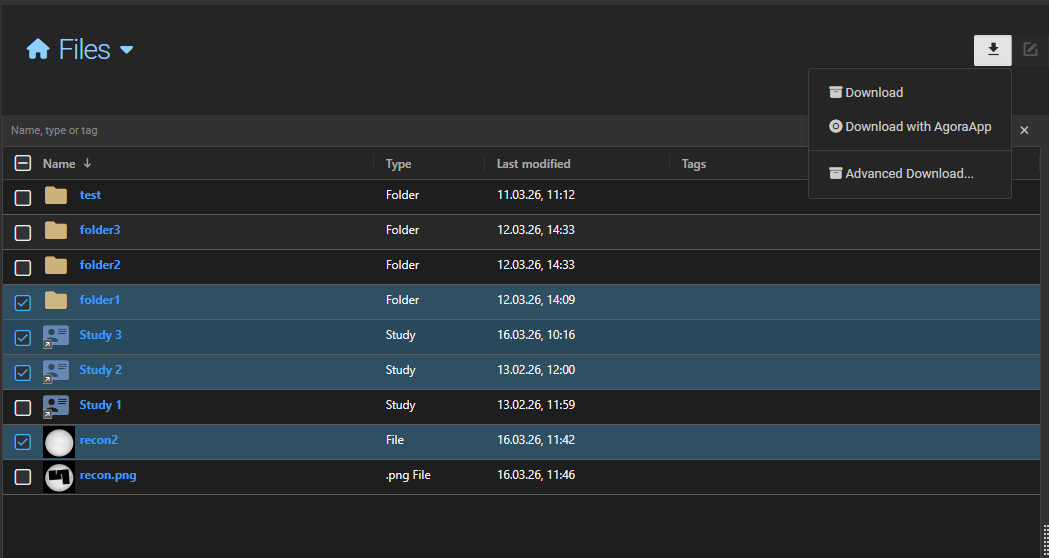
Agora packages the selected objects into a ZIP file. The directory structure inside the ZIP mirrors the data hierarchy:
Studies are placed in a folder named after the study, with subfolders for each series.
Folders are reproduced with their full subfolder structure.
Multiple selected objects are all included in the same ZIP.
The package is prepared in the background. Once ready, the browser starts the download automatically.
Note
There is a configurable size limit for browser downloads. If your selection exceeds the limit, the download will be rejected with an error message. Use the Agora App or the Python/MATLAB libraries for large transfers.
Anonymized download
When downloading studies, you can optionally anonymize the data before it is packaged. Enable the Anonymize option in the download dialog to apply the project’s anonymization profile to all files included in the ZIP.
7.2. Download with the Agora App
The Agora App is a lightweight desktop helper application for Windows, Linux, and macOS. It registers with your Agora server and enables two features:
Downloading data directly to a folder on your local machine (bypassing the browser). Because the Agora App downloads files individually without creating a ZIP archive first, it is generally faster than the browser download for large datasets.
Running local tasks — tasks configured to execute on the Local client computer.
Installation
Download the binary for your platform from the latest release page.
Windows
:: Run an elevated command prompt, then:
.\agora-app.exe register
.\agora-app.exe install
.\agora-app.exe start
Linux (system service — recommended)
sudo cp ./agora-app /usr/local/bin/
sudo chmod +x /usr/local/bin/agora-app
sudo agora-app register
sudo agora-app install --user=$USER --working-directory=$HOME
sudo agora-app start
Linux / macOS (local user, no service)
chmod +x ./agora-app
./agora-app register
./agora-app run
The register command prompts for the Agora server URL and your credentials. For servers using self-signed certificates add --no-certificate-check.
Note
On Windows, installing the app as a system service prevents GUI applications from being launched by local tasks. Run the app in local mode (agora-app run in a command prompt) when tasks need to open a graphical interface.
7.3. Download with Python
The gtagora-connector library can download any Agora object to a local path. See the Upload Data using Python section for installation and authentication instructions.
Download a folder
from pathlib import Path

folder = agora.get_folder(45)
folder.download(Path('/data/downloads'))
Pass recursive=True to include all subfolders:
folder.download(Path('/data/downloads'), recursive=True)
Download a study, series, or dataset
exam = agora.get_exam(12)
exam.download(Path('/data/downloads'))

series = agora.get_series(76)
series.download(Path('/data/downloads'))

dataset = agora.get_dataset(158)
dataset.download(Path('/data/downloads'))
For full documentation see the gtagora-connector repository.
7.4. Download with MATLAB
The gtagora-connector-matlab library provides the same download functionality from MATLAB. See the Upload Data using MATLAB section for installation and authentication instructions.
Download a folder
folder = agora.get_folder(45);
folder.download('/data/downloads');
Download a study, series, or dataset
exam = agora.get_exam(12);
exam.download('/data/downloads');

series = agora.get_series(76);
series.download('/data/downloads');

dataset = agora.get_dataset(158);
dataset.download('/data/downloads');
Download options
Additional options can be passed as name-value pairs:
% Flatten all files into a single directory (no subdirectories)
series.download('/data/downloads', 'flat', true);

% Filter by dataset type
series.download('/data/downloads', 'dataset_types', [types.PHILIPS_RAW]);

% Filter files by name using a regular expression
series.download('/data/downloads', 'regex', '\.log');
For full documentation see the gtagora-connector-matlab repository.