17. Showcases
A Showcase is a curated, time-limited collection of Agora objects that you can share with other users. Use showcases to give colleagues a controlled view of specific studies, series, or datasets — without adding them to your project or granting them full project access.
17.1. Creating a Showcase
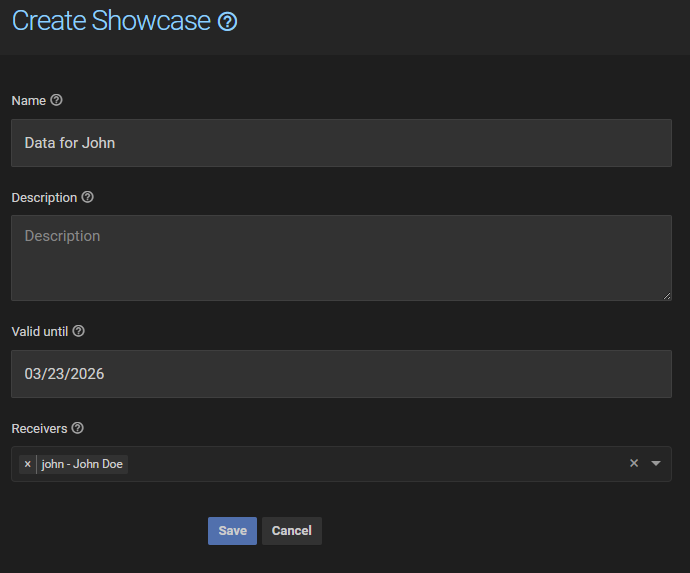
Navigate to Showcases in the main menu and click New. Fill in the creation form:
Name — a meaningful title that recipients will see.
Description — optional context about the contents.
Valid Until — the date on which the showcase expires and becomes inaccessible. Defaults to seven days from today.
Receivers — optionally select users to share the showcase with immediately. You can also manage access later.
17.2. Adding Objects
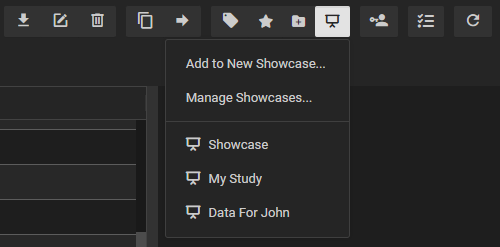
After creating the showcase, open it and navigate to the Objects tab. Objects can also be added directly from the study list or folder tree: select one or more studies, series, or datasets and use the Add to Showcase button in the toolbar. The dropdown menu lets you either append the objects to an existing showcase or choose Add to New Showcase to create a new showcase with those objects in one step.
17.3. Managing Access
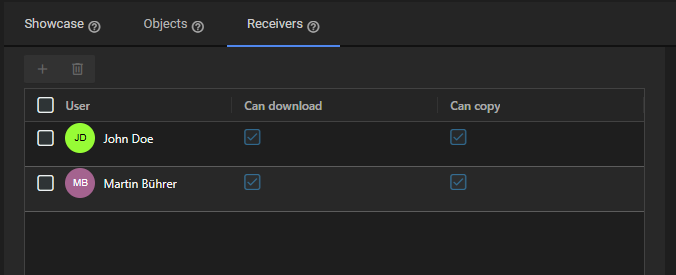
Open the showcase and go to the Access tab to control who can see it. Each entry in the access list grants one user access to the showcase with configurable permissions:
Can Download — the recipient can download the showcase contents.
Can Copy — the recipient can copy showcase objects into their own projects.
Click the button to add a user, or select an existing entry to edit or remove their access.
17.4. Viewing Showcases
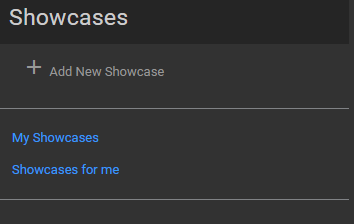
The Showcase section has two views:
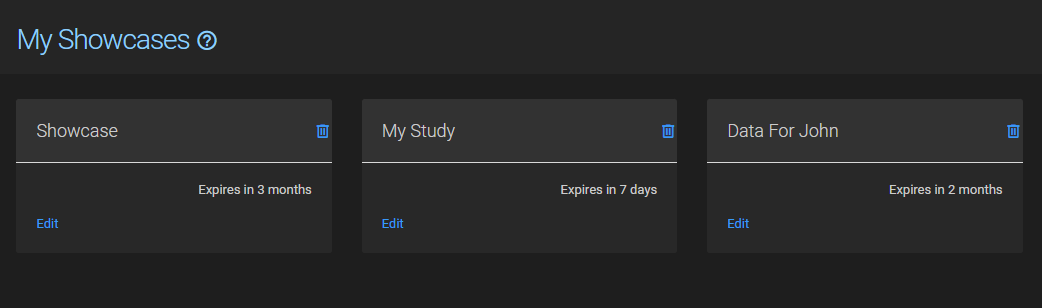
My Showcases — showcases you have created. From here you can edit, manage access, and delete showcases.
Showcases for Me — showcases other users have shared with you. Click Open to browse the contents.
Within a showcase, all shared objects are listed in an overview table. Clicking an object opens its detail view. Download and copy actions are available depending on the permissions granted by the showcase owner.
17.5. Expiration
Every showcase has an expiry date. Once the date passes the showcase is marked Expired and its contents are no longer accessible to recipients. The owner can see expired showcases in the My Showcases list but recipients cannot open them. To extend access, edit the showcase and set a new Valid Until date.